PODCAST CLIPPING GUIDE
Turn a podcast into Shorts.
Keep the story intact.
A good podcast clip feels complete even when someone has never heard the full episode. Here is a repeatable way to find that moment, edit it and make it ready for short-form feeds.
What you need: a podcast video you have rights to use and Cutawan on Windows, macOS or Linux. For automatic highlight discovery, choose ChatGPT sign-in via a signed-in Codex CLI with local Whisper, an OpenRouter key, or an OpenAI-compatible API key. Codex uses your plan's allowance; API usage is billed separately. See the first-run requirements.
1. Start with a recording that has a clear conversation
Import an MP4, MOV, MKV or WEBM file, or paste a supported video URL. For an interview, a clean recording of both voices makes transcription and speaker tracking easier. Set the transcription language in Cutawan's settings if you know it. Keep any existing episode notes close by so you can check names and context later.
2. Ask for the kind of moment you want
Choose Find clips. Cutawan transcribes the recording and suggests moments with a hook, development and an ending. If the episode covers several topics, steer discovery with a specific prompt such as "find practical advice for first-time founders" or "find the guest's surprising story about their first job." A focused prompt is more useful than asking for clips that will go viral.
3. Check each candidate as a standalone story
Play the clip from the first frame. Does the opening tell a new viewer what is at stake? Does the guest refer to "that" or "he" without context? Does the ending land a point, or stop before the answer? Cutawan's scores are editing aids, not predictions of views. Keep the clips that work without the rest of the episode.
If the opening needs context, trim to a clearer sentence or add a short title when you publish. Do not stretch a segment into a misleading claim just to create a dramatic hook.
4. Make the conversation work in a vertical frame
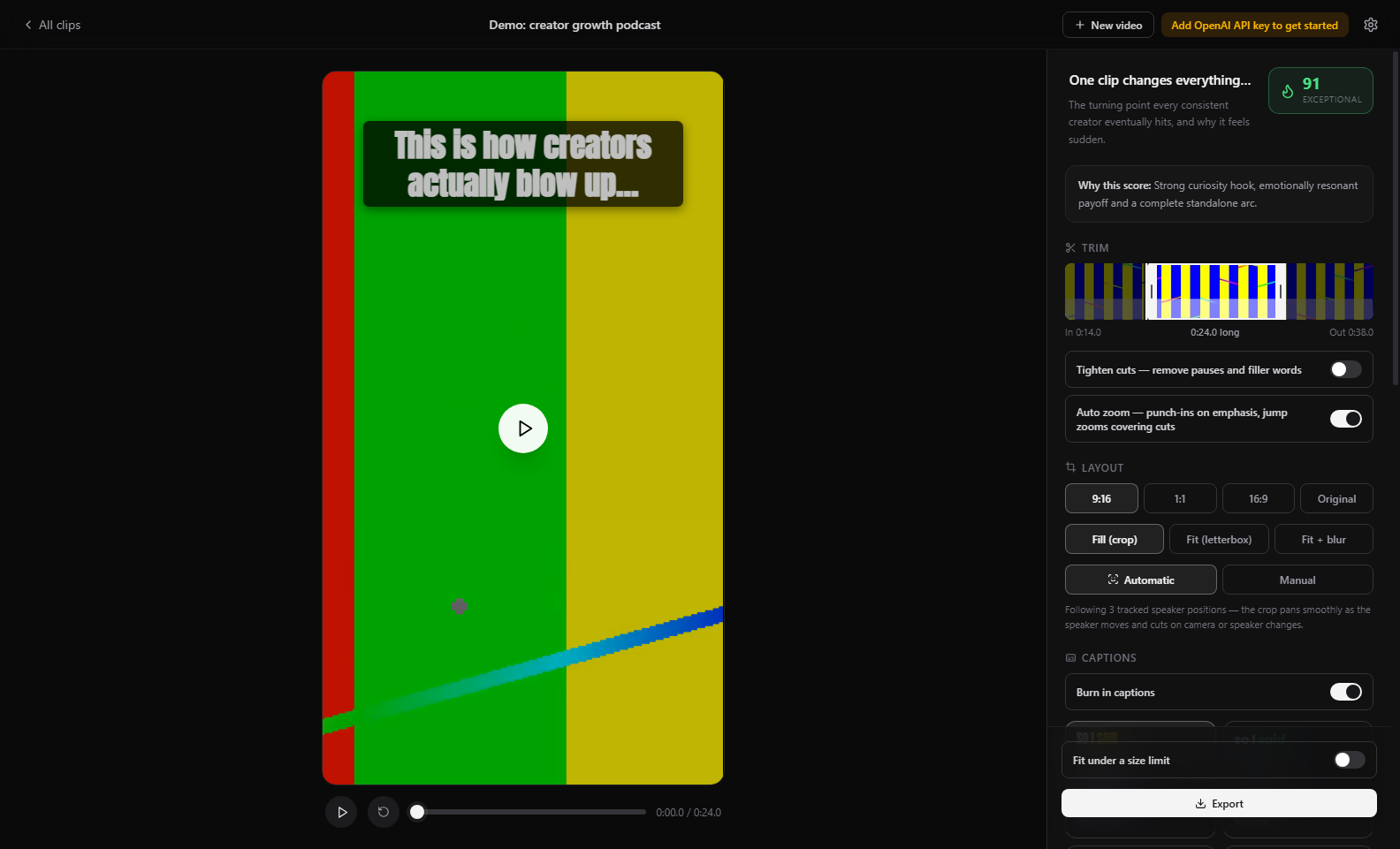
Choose 9:16 for a vertical Short, Reel or TikTok. Speaker-aware reframing can follow the active speaker, but preview every change of speaker and any on-screen slide or prop. A two-person shot may need a different crop from a close-up. You can also use 1:1 or 16:9 when the platform and content suit it.
5. Correct and style the captions
Choose a caption style, then check guest names, places, specialist terms and numbers against the original audio. Word-level highlighting can help viewers follow the conversation, but the words still need to be accurate. Keep captions clear of faces and important visuals. You can use your own font and add a logo if you have one.
6. Export and review the finished file
Export an H.264/AAC MP4 and play it all the way through. Check the first sentence, any speaker cuts, caption timing, audio level and final beat. Cutawan renders locally and does not add a mandatory watermark. You upload the finished file to each platform yourself.
A simple clip review checklist
- The first seconds establish a question, useful insight or surprising point.
- A viewer who missed the full episode can still follow the names and topic.
- The clip includes the answer or payoff before it ends.
- Captions match the voices and stay readable inside the crop.
- The exported video plays correctly before you publish it.
To learn the broader workflow for webinars, interviews and streams, read the long-video-to-shorts guide. For a whole episode with captions, see the video caption guide.