VIDEO CAPTION GUIDE
Add animated captions to video.
Make every word count.
Cutawan can caption a complete video or a short clip, highlight words as they are spoken and burn the result into an MP4. This guide covers the settings that matter and the checks to make before publishing.
No API key needed for local captions: Cutawan is free and has no forced export watermark. Choose Local captions only in the first-run wizard to transcribe a whole video with local Whisper. This needs Python 3.10+ and a speech model, but no AI service. The API route is available if you prefer it and is billed separately.
Choose the right mode
When starting a project, choose Caption the whole video if you already know which recording you want to keep. It skips AI highlight discovery and opens the whole recording for captioning, trimming and reframing. Choose Find clips if you want Cutawan to suggest shorter moments first. Both routes lead to the editor.
Import and transcribe
Add a local video file or a supported video URL. Set the spoken language in Settings when you know it. Clear speech helps the transcript, but every automatic transcript needs a review. Names, acronyms, accents and overlapping speakers deserve particular attention.
Pick a caption style that fits the footage
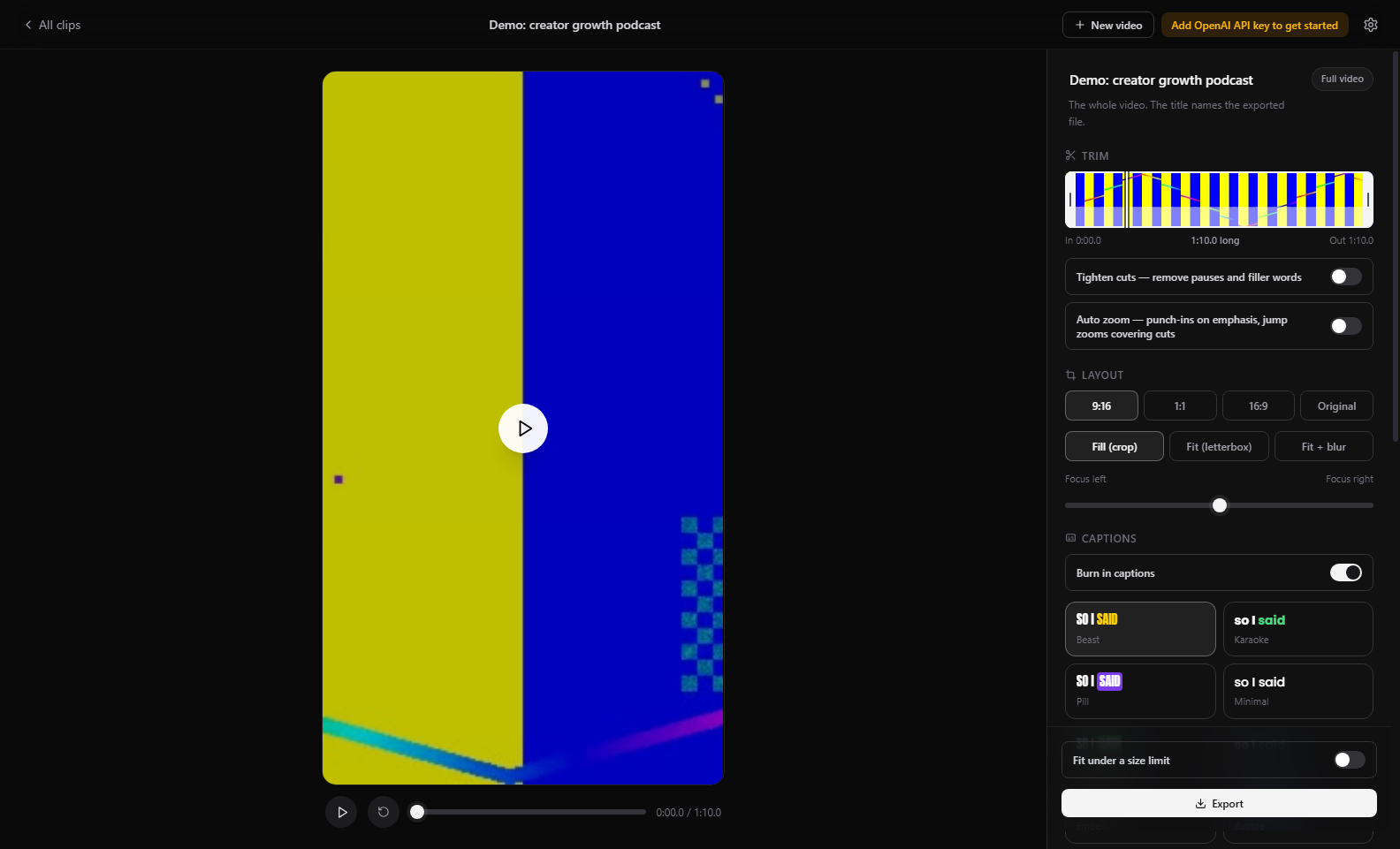
Cutawan includes 12 caption styles and supports custom TTF or OTF fonts. Word-by-word highlighting adds movement, while a simpler style can work better for a dense explanation. Preview the actual footage at phone size. Make sure captions contrast with the background and do not cover faces, slides or product details.
Set the frame and timing
Choose 9:16 for a vertical Short, Reel or TikTok, or select 1:1 or 16:9 for another destination. Speaker-aware reframing can follow a conversation, and optional auto zoom adds movement. Check the crop whenever a speaker changes or an important visual enters the frame. Trim the start and end so the clip begins cleanly and finishes the thought.
Proofread before export
- Listen for incorrect names, numbers and specialist words.
- Check that captions appear with the spoken word and do not linger after a cut.
- Review every line break at the size people will actually watch.
- Look for captions covering a face, a demonstration or the platform interface.
- Preview any pause or filler-word removal before committing to the edit.
Export an MP4 with captions burned in
Cutawan exports H.264/AAC MP4 files with captions in the video itself. Watch the exported file, not only the preview, to confirm the final timing, framing and audio. Export is local and has no mandatory Cutawan watermark. Upload the file to your chosen service yourself.
Privacy and limits
The source video is not uploaded to a hosted Cutawan editor. With Local captions only, transcription and export happen on your computer without an AI service; installation of Whisper and its model requires a download first. On the API route, extracted audio may be sent for transcription and analysis data may leave your computer. If you have already transcribed a project, you can continue editing and exporting it without another transcription call.
For help finding the right short segment first, read the long-video-to-shorts workflow or the podcast clipping guide.